
Missing GTIN in Google Merchant Center? How to Fix It
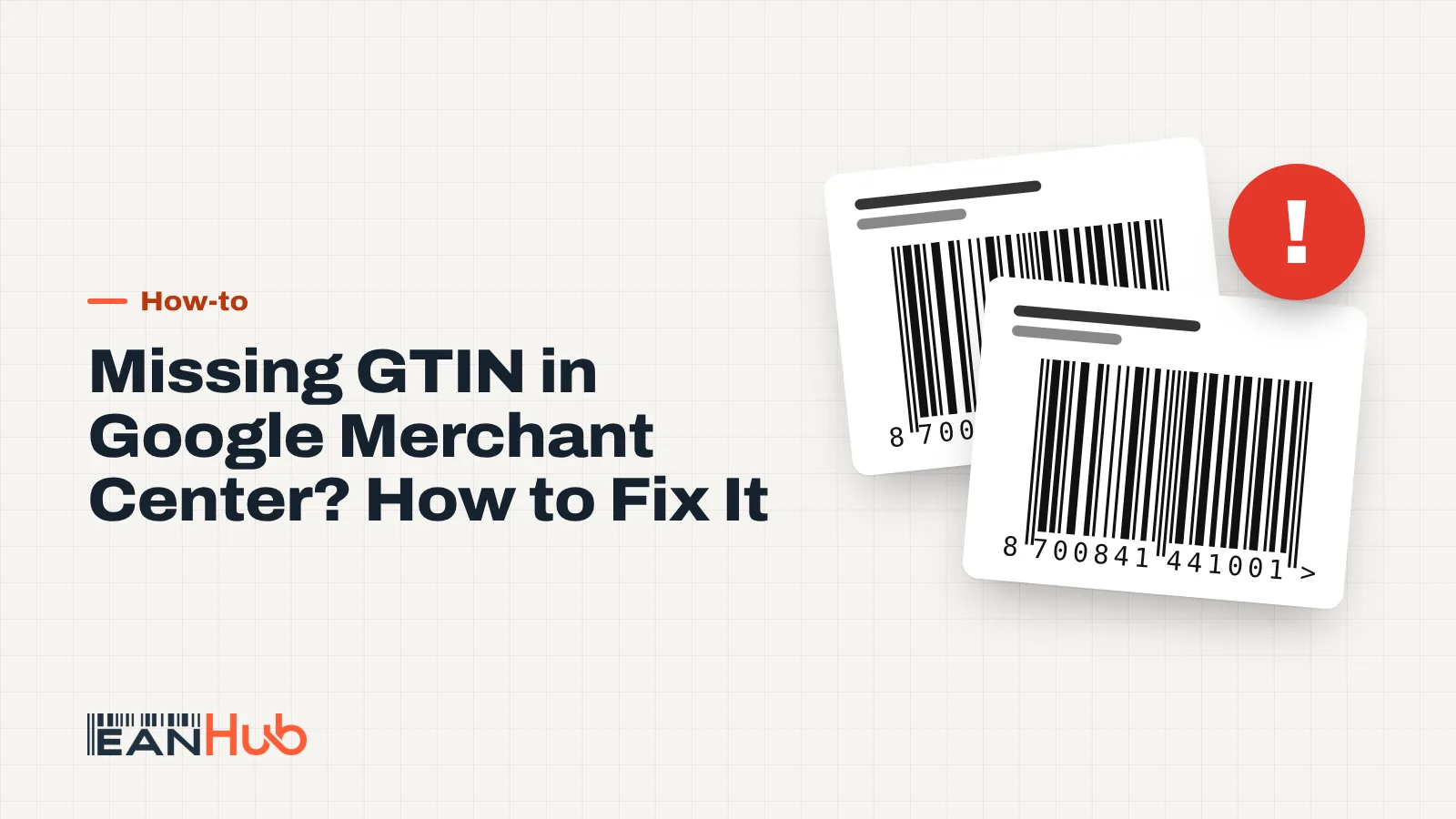
A missing GTIN warning in Google Merchant Center means Google expects a barcode number for that product and didn't receive a valid one. Fix it by sending the correct 13-digit GTIN with the brand, or, only for products that genuinely have no identifiers, by setting identifier_exists to no.
Key points
- Google's current issue name is "Missing or incorrect GTIN"; older accounts show "Limited performance due to missing value [gtin]".
- Each product needs either an accurate gtin, or both mpn and brand.
- GTINs starting with 02, 04 or 2, or in the 05, 98 and 99 coupon ranges, are rejected.
- Set identifier_exists to no only if you're certain the product has no identifiers.
- Fixes can take 24 to 72 hours to clear from the Needs attention tab.
You log into Merchant Center on a Monday morning and half your catalogue is in the Needs attention tab, each product tagged with the same message about a GTIN. Sales from Shopping ads have slipped and you want to know why. A missing GTIN in Google Merchant Center means Google expects a barcode number for those products and either received nothing or received a number it doesn't accept.
The fix depends on which of three situations you're in: the product has a GTIN and your feed isn't sending it, the GTIN you send is invalid, or the product genuinely has no GTIN. This guide covers all three, step by step.
What a missing GTIN in Google Merchant Center means
Google has used different wording over the years, so you may see any of these:
| Message you see | What it means | Typical cause |
|---|---|---|
| Missing or incorrect GTIN | Google expects identifiers and didn't get valid ones | Barcode not in the feed, or wrong value |
| Limited performance due to missing value [gtin] | Older wording of the same problem | Same as above |
| Invalid value [gtin] | The number fails Google's format checks | Letters or spaces, wrong length, wrong check digit, restricted prefix |
| Duplicate GTIN (reported by feed tools) | The same GTIN on different products | Colours sharing one number, or a bundle reusing a single item's GTIN |
| identifier_exists warning | You said no identifier exists, but Google sees evidence of one | Product marked as custom but a barcode exists |
Google's own summary is short: add a brand and either a GTIN or an MPN, and leave identifiers out only for one-of-a-kind or vintage products.
Situation 1: the product has a GTIN, but Google didn't get it
This is the most common case, especially on Shopify and WooCommerce. The barcode is on the box and maybe even in your shop, but it never reaches the feed.
Check these in order:
- Is the GTIN in the right field? It belongs in your platform's barcode or GTIN field, at variant level. A GTIN in the SKU or description is invisible to the feed. Our guide to adding GTINs in your shop shows where the field is on each platform.
- Does your feed map that field to
gtin? Feed apps and plugins sometimes read a different field from the one you filled. - Is the product flagged as custom? In Shopify's Google channel, merchants have reported that a "custom product" flag stops identifiers being sent. In a feed file, the equivalent is
identifier_existsset tono. - Is
brandfilled? Google wants the brand alongside the GTIN.
Situation 2: the GTIN is invalid
Google's GTIN specification is strict. A GTIN must:
- contain numbers only (Google ignores spaces and dashes, but letters fail),
- be 8, 12, 13 or 14 digits long,
- have a correct check digit,
- not start with 02, 04 or 2 (restricted ranges for internal and variable-measure use),
- not sit in the coupon ranges 05, 98 or 99.
The check digit is where most typos show up. Paste the number into our EAN checker: it recalculates the last digit and tells you instantly if the number is broken.
| Digit | 5 | 0 | 6 | 0 | 1 | 2 | 3 | 4 | 5 | 6 | 0 | 0 |
|---|---|---|---|---|---|---|---|---|---|---|---|---|
| × weight | ×1 | ×3 | ×1 | ×3 | ×1 | ×3 | ×1 | ×3 | ×1 | ×3 | ×1 | ×3 |
| Result | 5 | 0 | 6 | 0 | 1 | 6 | 3 | 12 | 5 | 18 | 0 | 0 |
5060123456004
Spreadsheet traps
If you manage your feed in Google Sheets or Excel, watch for two classic faults. Spreadsheets love to turn long numbers into scientific notation (5.06012E+12), and they drop leading zeros from 14-digit GTINs. Format the GTIN column as plain text before you paste numbers in.
Duplicates
Each colour and size variant needs its own GTIN, as Google's GTIN page states. If three colours of a jumper share one number, Google can't tell them apart. For multipacks and bundles you created yourself, Google wants the individual product's GTIN (for multipacks) or the main product's GTIN (for bundles), together with the multipack or bundle attribute.
Situation 3: the product genuinely has no GTIN
Some products have no barcode at all: handmade jewellery, made-to-order furniture, vintage clothing, one-off prints. For these, Google provides the identifier_exists attribute.
- Set
identifier_existstono(orfalse) only when the product has no GTIN, MPN or brand that meets the requirements. - Google's examples include a custom-made dress and a hand-knitted scarf, both with GTIN and MPN left blank.
- Google warns that products set to
nowhich show evidence of an identifier will receive a warning, so don't use it as a shortcut.
Own brand and private label
If you sell under your own brand, Google's GTIN guidance says store-brand products generally have no GTIN, and you should then submit brand and MPN instead. Its MPN guidance adds that you should only create an MPN if you're the manufacturer.
If you do give your own products EAN codes, for example because you also sell on Amazon.co.uk or eBay.co.uk, send those numbers as gtin with your brand. Google asks you to use GTINs as the manufacturer assigned them and never to guess or make one up.
Is there a barcode on the product or its packaging?
YesSend that GTIN with brand
Do you assign EANs to your own range?
YesSend your EAN as gtin
Do you have a manufacturer part number?
YesSend brand + MPN
Set identifier_exists to no
Step-by-step: fixing GTIN warnings in Merchant Center
Google describes two routes, depending on how many products are affected.
Fixing a few products
- Go to Products and open the Needs attention tab.
- Use the filter to show products with the GTIN issue.
- Click a product title, then Edit product.
- Make sure the product has an accurate
gtin, or bothmpnandbrand. - Save.
If your products come from a shop integration or a feed file, fix the source as well, otherwise the next sync overwrites your manual edit.
Fixing many products
- In Needs attention, filter by the GTIN issue.
- Download the affected products as a CSV.
- Compare the list with your product data and add the correct GTINs (or brand and MPN).
- Upload the corrected data through your usual method: shop integration, feed file or supplemental data source.
Google notes that changes can take 24 to 72 hours to show on the Needs attention page.
Worked example: a UK gift shop with 180 warnings
A small gift shop on WooCommerce sees 180 products under "Missing or incorrect GTIN". They download the CSV and sort the list into three groups:
- 120 branded resale items (mugs, notebooks): the barcodes are on the packaging but were never entered in WooCommerce. They add them to the GTIN field per variation and validate them with the EAN checker. Two numbers fail, both typos.
- 45 own-brand candles: they assign each scent and size its own EAN, add them to the shop and send them as
gtinwith brand "Wick & Willow". - 15 hand-painted one-off prints: no GTIN or MPN exists, so they set
identifier_existstono.
Three days after the feed sync, the Needs attention count for this issue is down to zero.
Preventing GTIN warnings on new products
Once the backlog is cleared, a short routine stops the warnings coming back every time you add stock:
- Add the GTIN when you create the product, not after it has synced. A product that reaches Merchant Center without one starts life in Needs attention.
- Validate before you publish. Run new numbers through the checker as part of your listing routine, the same way you check prices.
- One number per variant from day one. When you add a new colour or size, give it its own GTIN rather than copying the one from an existing variant.
- Keep a master spreadsheet of every GTIN you've assigned, with product, variant and date. It's your proof of which number belongs where, and it stops anyone reusing a number by accident.
- Review the Needs attention tab weekly. A small number of warnings is easy to fix; a few hundred after a bulk import is not.
When GS1 numbers are the safer choice
Google's published rules focus on format, check digit and using the manufacturer's GTIN. They don't spell out every check behind the scenes. If your business depends on being found under your company name in Verified by GS1, or you sell your own brand on Amazon and need Brand Registry, or you supply supermarkets and chains, license your numbers from GS1 UK. Our codes don't show your company in Verified by GS1, and we can't promise how any platform treats non-GS1 numbers for branded products.
For handmade, unbranded and small own-label ranges sold through your own site and Google Shopping, buying codes once is often the more practical route.
What to do now
- Download the affected products from Needs attention and sort them into the three situations above.
- Check every GTIN with the EAN checker and fix typos, spreadsheet formatting and restricted prefixes.
- Make sure barcodes sit in the right field per variant and that your feed sends them as
gtinwithbrand. - Use
identifier_exists = noonly for genuinely unidentified products. - Give your own-brand products their own EANs if you sell on marketplaces too, and check the EANHub blog for related guides.
Frequently asked questions
Will products with a missing GTIN still show on Google Shopping?
Often yes, but with reduced reach. Google's help pages say products with an assigned GTIN that are submitted without one may have limited visibility. The warning usually doesn't disapprove the product outright, but it can hold back how often your products appear, so it's worth fixing.
Can I just set identifier_exists to no to clear the warning?
Only if the product truly has no GTIN, MPN or brand, such as a handmade or one-of-a-kind item. Google says to use no only when you're certain, and products set to no that show evidence of an identifier receive a warning. If a barcode exists on the pack, send it instead.
What's the difference between a GTIN and an MPN?
The GTIN is the barcode number, such as a 13-digit EAN. The MPN is the manufacturer's part number, a code of up to 70 characters. Google accepts either an accurate GTIN, or MPN plus brand. Don't put your own SKU in the MPN field unless you are the manufacturer.
How do I find the right GTIN for products I resell?
Look at the barcode on the packaging: the digits under it are the GTIN. If you only have the number, our guide to EAN code lookup shows how to check who licensed it in Verified by GS1 and whether it's already listed elsewhere.
Do I need GS1 barcodes for Google Shopping?
Google's help pages focus on the GTIN format and check digit, and on using the GTIN the manufacturer assigned. They don't publish exactly how GTINs are matched to brands behind the scenes. If you sell your own brand and need to appear in Verified by GS1, license numbers from GS1 UK.
Sources
- Missing or incorrect GTIN – Google Merchant Center Help
- GTIN [gtin] – Google Merchant Center Help
- Identifier exists [identifier_exists] – Google Merchant Center Help
- About unique product identifiers – Google Merchant Center Help
- MPN [mpn] – Google Merchant Center Help
- How do I find out who owns a GTIN or barcode? – GS1 UK
More articles
All articles-
 How-to EAN Code Lookup: How to Find Who Owns a Barcode An EAN code lookup starts with three checks: is the number valid, which company licensed it, and where is it already listed for sale. Verified by GS1, marketplace search and a check digit tool each answer one of those questions, and none of them answers all three. 10 min read
 -
 How-to Do You Need a New Barcode for Each Variant? The GTIN Rules Yes: every size, colour or other variant a customer can choose needs its own barcode. You also need a new one for multipacks, fixed bundles and certain product changes, such as a different net content or a dimension change of more than 20 per cent. 9 min read
 -
 How-to How to Add GTIN to Shopify, WooCommerce and BigCommerce To add a GTIN to Shopify, put the 13-digit EAN in the Barcode field of each variant, not just the product. WooCommerce and BigCommerce work the same way: one EAN per variant in the platform's identifier field, then let your feed send it to Google and marketplaces. 9 min read
 -
 How-to How to Print Barcode Labels Yourself (That Actually Scan) To print barcode labels yourself, generate the barcode as a vector file, size it between 80 and 200 per cent of the nominal EAN-13 size, and print it on a thermal or laser printer with the module width matched to the printer's dots. Then test-scan a sample before you print the full run. 9 min read