
How to Print Barcode Labels Yourself (That Actually Scan)
To print barcode labels yourself, generate the barcode as a vector file, size it between 80 and 200 per cent of the nominal EAN-13 size, and print it on a thermal or laser printer with the module width matched to the printer's dots. Then test-scan a sample before you print the full run.
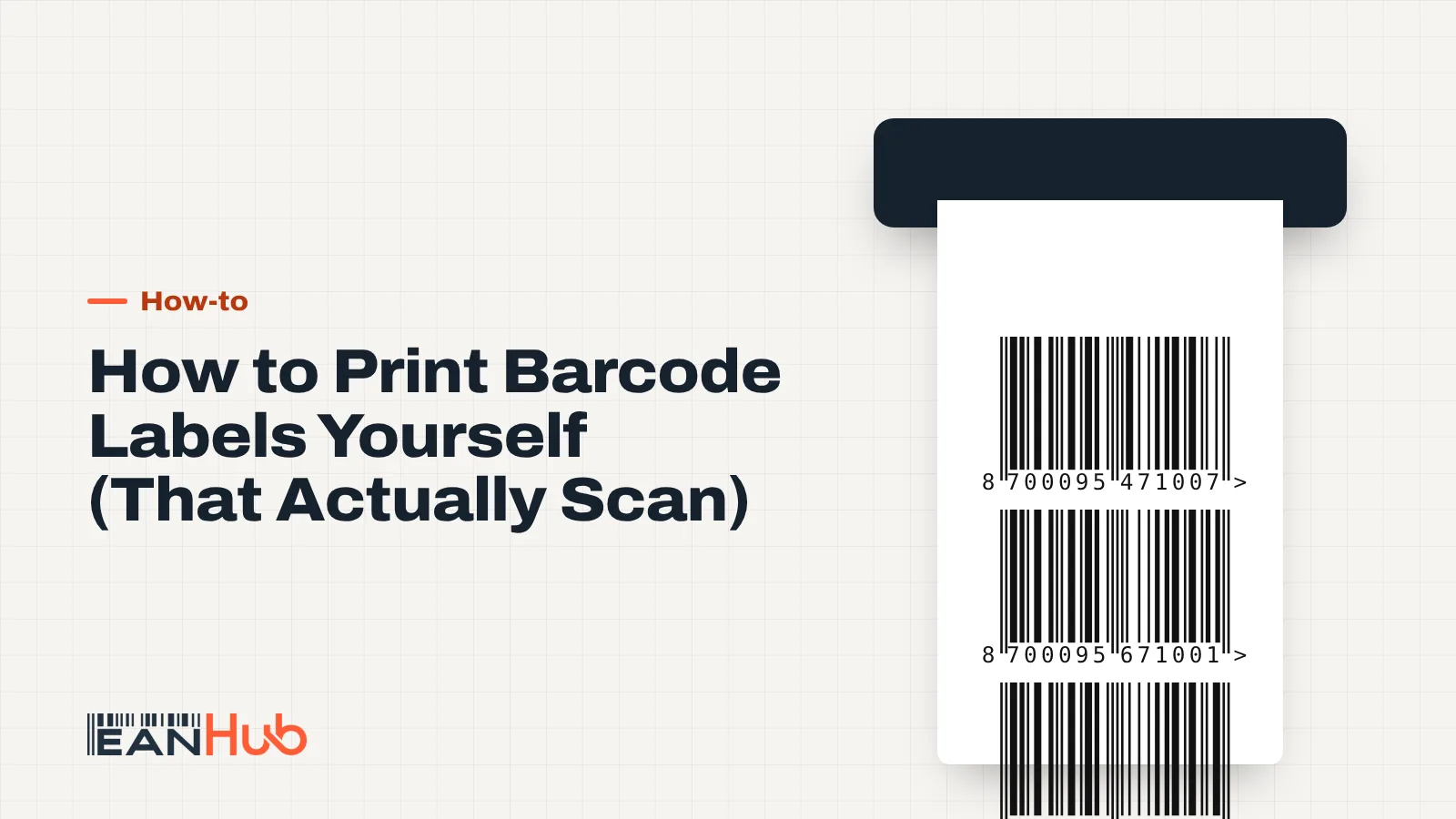
Key points
- A nominal EAN-13 is 37.29 mm wide including quiet zones; stay between 80% and 200% of that size.
- Match the bar width (X-dimension) to whole printer dots, or bars come out uneven.
- On a 203 dpi printer, 3 dots per module gives about 114% size, a safe choice.
- Use SVG or PDF for barcodes; avoid scaling a small PNG up.
- Black bars on white, no red, no cropping of the quiet zones.
You've got your EAN codes, the stock has arrived, and the packaging didn't come with a barcode printed on it. Now 400 jars need a label by Friday. Learning how to print barcode labels yourself is straightforward, but a few millimetres and one wrong file format are the difference between a label that beeps first time and one a till operator has to key in by hand.
The short version: generate a vector barcode, keep it between 80 and 200 per cent of the nominal size, match the bar width to your printer's dots, and test-scan a sample before the full run. Here's how to get each step right.
Step 1: generate the barcode as a vector file
Start with the number, not the image. Run each code through our EAN checker so you're not printing 400 labels with a typo. Then create the image with the barcode generator.
The file format matters more than most people expect:
| Format | Best for | Watch out for |
|---|---|---|
| SVG | Design software, web-to-print, label apps that accept vectors | Some older label programs can't import it |
| PDF (vector) | Sending artwork to a printer; label design templates | Make sure it's a vector PDF, not a scanned image |
| EPS | Older print workflows and packaging artwork | Increasingly replaced by PDF |
| PNG | Quick previews, marketplace images, label apps that only take bitmaps | Only use at the exact pixel size you need; never scale it up |
| JPG | Nothing barcode-related | Compression blurs the bar edges |
Vectors scale without losing sharp edges. A PNG made for a screen can look fine on your monitor and still print with fuzzy bars, because the printer has to stretch the pixels.
Step 2: get the size right
GS1 defines the nominal EAN-13 at 100 per cent magnification with an X-dimension of 0.330 mm. The X-dimension is the width of the narrowest bar, and everything else in the barcode is a multiple of it.
At 100 per cent, an EAN-13 is 37.29 mm wide including the quiet zones (the blank margins on each side). The GS1 symbol reference allows magnifications from 80 to 200 per cent. GS1 UK's sizing table shows how the bars scale:
| Magnification | X-dimension | Width incl. quiet zones | Bar height |
|---|---|---|---|
| 80% | 0.264 mm | 29.83 mm | 18.28 mm |
| 90% | 0.297 mm | 33.56 mm | 20.57 mm |
| 100% | 0.330 mm | 37.29 mm | 22.85 mm |
| 150% | 0.495 mm | 55.94 mm | 34.28 mm |
Bar heights exclude the digits underneath. The 80 per cent X-dimension follows from 80 per cent of 0.330 mm. The quiet zones are part of the barcode: for an EAN-13 they are 11 modules wide on the left and 7 on the right, so at 100 per cent that's roughly 3.6 mm and 2.3 mm of blank space.
Quiet zone
- 80 % minimum29.83 mm × 20.74 mm
- 100 % (nominal)37.29 mm × 25.93 mm
- 200 % maximum74.58 mm × 51.86 mm
Step 3: how to print barcode labels on thermal or office printers
Thermal label printers
Thermal printers are the standard choice for product labels. They come in two types:
- Direct thermal prints on heat-sensitive labels, with no ink or ribbon. Cheap to run, but the labels fade with heat and sunlight over time. Fine for shipping labels and fast-moving stock.
- Thermal transfer melts ink from a ribbon onto the label. It lasts much longer, so it suits products that sit in a warehouse or on a shelf for months.
Both print in rolls, one label at a time, so you don't waste half a sheet when you only need seven.
Laser and inkjet printers
An ordinary office printer with A4 label sheets works well for small batches. Laser toner gives crisper edges than inkjet. With inkjet, use matt labels made for inkjet printers, because ink spreads on the wrong paper and fattens the bars.
Step 4: match the bars to your printer's dots
This is the step most guides skip, and it's why some home-printed barcodes fail even at the "right" size.
A printer can only print whole dots. Zebra's specifications give a nominal dot size of 0.125 mm at 203 dpi and 0.084 mm at 300 dpi. A nominal 0.330 mm module would need 2.64 dots at 203 dpi. The printer can't do that, so it rounds some bars down and others up, and the bars come out uneven.
The fix is to choose a size where the module is a whole number of dots:
| Printer | Dots per module | Module width | Magnification |
|---|---|---|---|
| 203 dpi | 2 | 0.250 mm | about 76% (too small for most uses) |
| 203 dpi | 3 | 0.375 mm | about 114% |
| 203 dpi | 4 | 0.500 mm | about 152% |
| 300 dpi | 4 | 0.339 mm | about 103% |
| 300 dpi | 5 | 0.423 mm | about 128% |
| 600 dpi (many lasers) | 8 | 0.339 mm | about 103% |
These figures are worked out from the printer's dot size: dots × (25.4 mm ÷ dpi). Good label software has a setting for "module width in dots" or snaps the barcode to the printer grid. Use it.
Worked example: 400 jar labels on a 203 dpi printer
Suppose your number is 5060123456028 and you're printing on a 203 dpi direct thermal printer.
- Set the module to 3 dots (0.375 mm), roughly 114 per cent.
- The barcode is now about 37.29 × 1.137 ≈ 42.4 mm wide including quiet zones, and about 26 mm of bar height.
- With the digits underneath, the whole symbol is about 29.5 mm tall, so a 50 × 35 mm label leaves a margin all round.
- If your jar only takes a 40 mm wide label, drop to a 300 dpi printer at 4 dots (about 103 per cent, roughly 38.3 mm wide) rather than squashing the barcode on the 203 dpi machine.
- Validate the numberRun every EAN through the checker before you design anything.
- Generate a vectorExport SVG or PDF, not a stretched screen image.
- Snap to printer dotsChoose a module width in whole dots for your dpi.
- Print one test labelUse the real label stock and real printer settings.
- Scan, then print allTest with a phone and, ideally, a handheld scanner.
Step 5: test-scan with your phone
Before you print the full run, print one label and scan it. A phone camera app or a free barcode-scanning app will read EAN-13s. Check two things:
- It scans quickly from a normal distance, without you hunting for the right angle.
- The decoded number matches the 13 digits printed under the bars.
A phone is more forgiving than a supermarket till scanner, so a phone read is the minimum. If you have access to a handheld laser scanner, try that too. If a label only scans on the third attempt with your phone, it will fail at a till.
Common print faults and how to fix them
| Fault | Likely cause | Fix |
|---|---|---|
| Bars look uneven or thicker on one side | Module width isn't a whole number of dots | Snap to 3 dots at 203 dpi or 4 dots at 300 dpi |
| Faded or grey bars | Low print darkness, worn printhead, or old direct thermal labels | Raise darkness gradually, clean the head, use fresh stock |
| White streaks through the bars | Dirty or damaged printhead | Clean with an isopropyl wipe; replace if streaks remain |
| Won't scan, looks fine | Quiet zones cropped by label edge or text | Keep the blank margins on both sides clear |
| Won't scan on a coloured label | Low contrast or red bars | Black bars on white or a light background; GS1 warns against red-spectrum colours |
| Blurry edges | Bitmap scaled up, or JPG compression | Re-export as SVG or PDF |
| Scanner reads a different number | Wrong digits in the source data | Check the number with the EAN checker |
When to hand it to a professional printer
Printing labels yourself is ideal for short runs, new products and mixed batches. For tens of thousands of identical labels, or barcodes printed straight onto boxes and pouches, a professional label printer or packaging printer is usually cheaper per unit and gives you a print-quality check. Send them a vector file and the magnification you want, and ask them to confirm the X-dimension on proof.
Supermarkets and larger retailers may also have their own barcode quality requirements. If you're heading into big retail, you'll typically need GS1-licensed numbers in any case, so check both the numbering and the print specification with the buyer before you order.
What to do now
- Validate every number with the EAN checker.
- Generate SVG or PDF files with the barcode generator.
- Pick a size between 80 and 200 per cent, with the module snapped to whole printer dots.
- Print one label, test-scan it on the real product, then print the batch.
- Unsure whether your range needs more numbers first? Read when you need a new EAN.
Frequently asked questions
Can I print barcode labels on a normal inkjet printer?
Yes, for small runs. Use matt label sheets, the printer's best quality setting and a vector file. Inkjet ink can spread on uncoated paper, which makes bars fatter, so test-scan a sample. For hundreds of labels a week, a thermal printer is faster and gives sharper edges.
What size should a barcode label be?
The barcode itself is 37.29 mm wide including quiet zones at 100 per cent, and about 26 mm tall including the digits. Add a couple of millimetres of margin on each side for print tolerance. A label around 50 × 30 mm fits a full-size EAN-13 comfortably; smaller labels push you towards 80 to 90 per cent.
Is 203 dpi good enough for EAN barcodes?
Yes, if you size the barcode in whole dots. At 203 dpi a dot is 0.125 mm, so 3 dots per module gives a 0.375 mm bar module, about 114 per cent of nominal. That scans reliably. Avoid sizes that need 2.6 dots, because the printer rounds and bars become uneven.
Why won't my printed barcode scan?
The usual culprits are cropped quiet zones, a barcode squashed in one direction, bars printed in red or on a dark background, faded thermal labels and wrong digits. Check the number with our EAN checker first, then print a fresh test label at 100 per cent with nothing cropped.
Sources
More articles
All articles-
 How-to EAN Code Lookup: How to Find Who Owns a Barcode An EAN code lookup starts with three checks: is the number valid, which company licensed it, and where is it already listed for sale. Verified by GS1, marketplace search and a check digit tool each answer one of those questions, and none of them answers all three. 10 min read
 -
 How-to Do You Need a New Barcode for Each Variant? The GTIN Rules Yes: every size, colour or other variant a customer can choose needs its own barcode. You also need a new one for multipacks, fixed bundles and certain product changes, such as a different net content or a dimension change of more than 20 per cent. 9 min read
 -
 How-to How to Add GTIN to Shopify, WooCommerce and BigCommerce To add a GTIN to Shopify, put the 13-digit EAN in the Barcode field of each variant, not just the product. WooCommerce and BigCommerce work the same way: one EAN per variant in the platform's identifier field, then let your feed send it to Google and marketplaces. 9 min read
 -
 How-to Missing GTIN in Google Merchant Center? How to Fix It A missing GTIN warning in Google Merchant Center means Google expects a barcode number for that product and didn't receive a valid one. Fix it by sending the correct 13-digit GTIN with the brand, or, only for products that genuinely have no identifiers, by setting identifier_exists to no. 9 min read